
IPTV Setup on Amazon Firestick
The Firestick is the most popular IPTV device in the UK. The only fiddly part is that IBO Player Pro is not in the Amazon store, so it is installed using Amazon’s own free Downloader app — a normal, supported process rather than a workaround.
Step-by-step setup
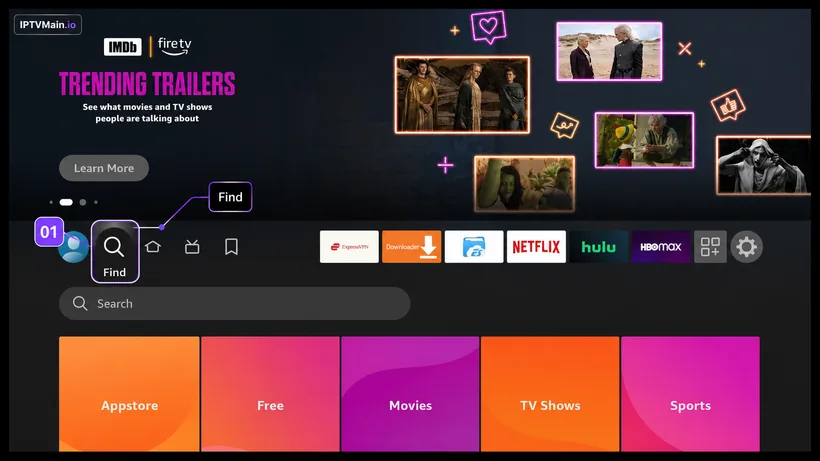
- Select Find. From the Firestick home screen, select Find.
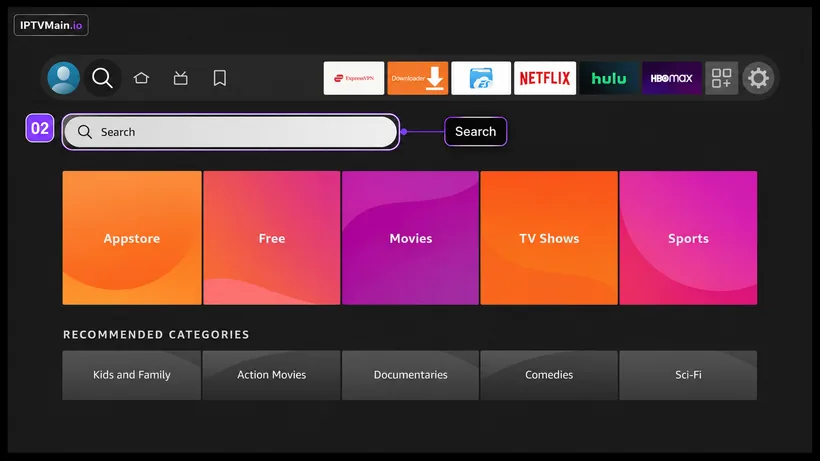
- Open Search. Choose Search from the Find menu.
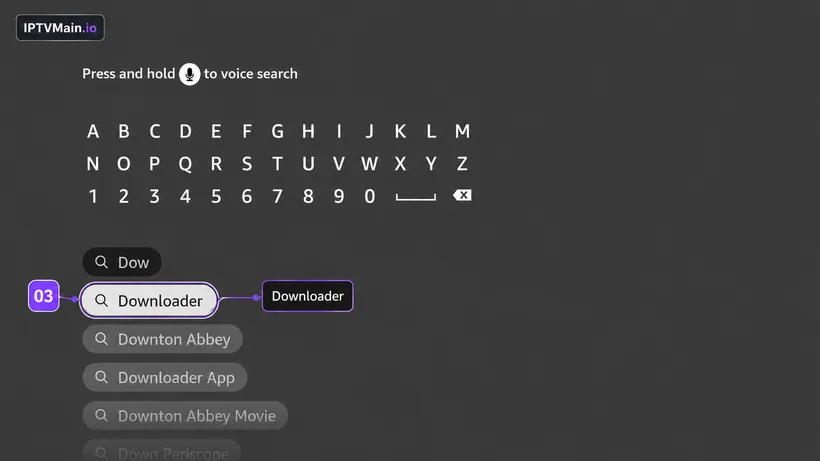
- Install Downloader. Search for the Downloader app and install it. This is a free, official Amazon app — we use it to install the IPTV player.
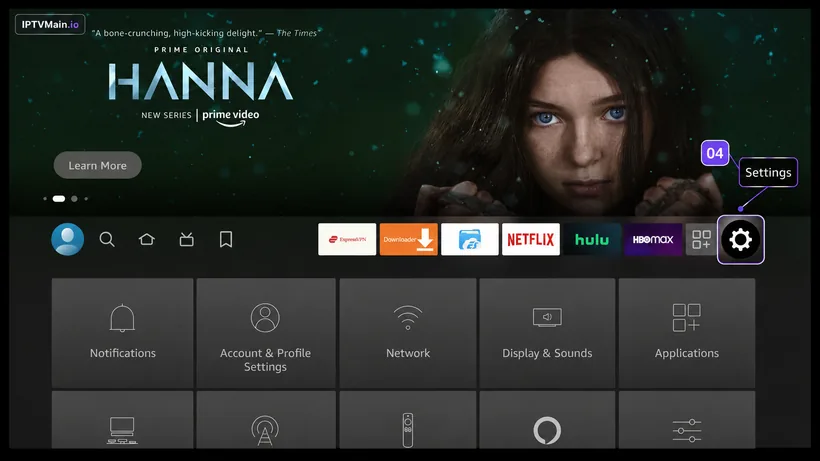
- Open Settings. Go back to the home screen and open Settings.
- Open My Fire TV. Inside Settings, choose My Fire TV.
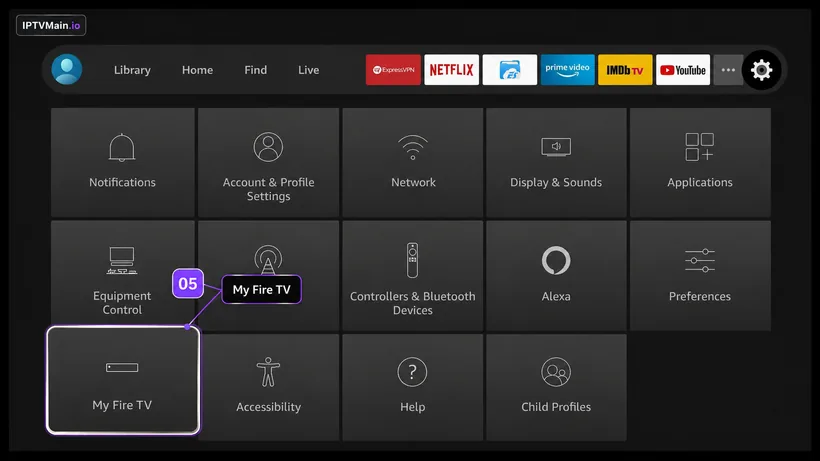
- Open Developer Options. Choose Developer Options. If it is missing, open About, highlight Fire TV Stick and click it seven times to unlock the menu.
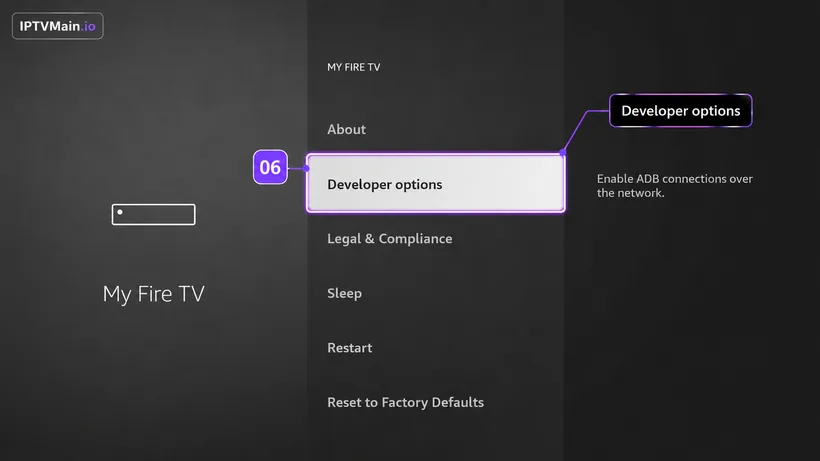
- Install Unknown Apps. Select Install Unknown Apps — called Apps from Unknown Sources on older interfaces.
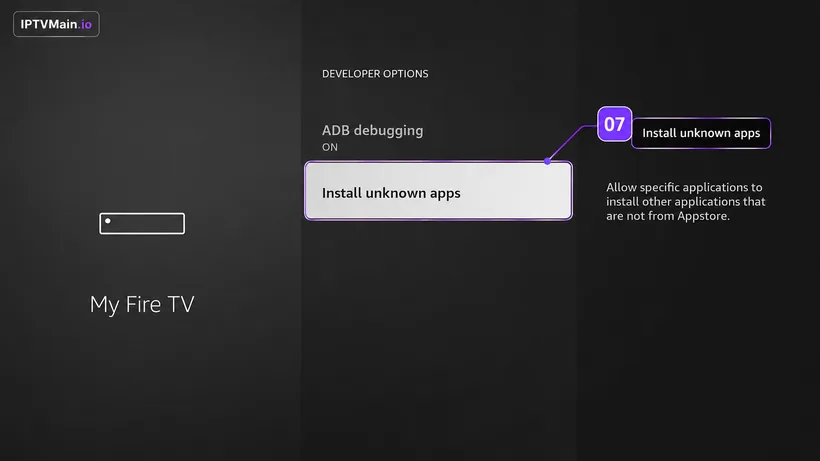
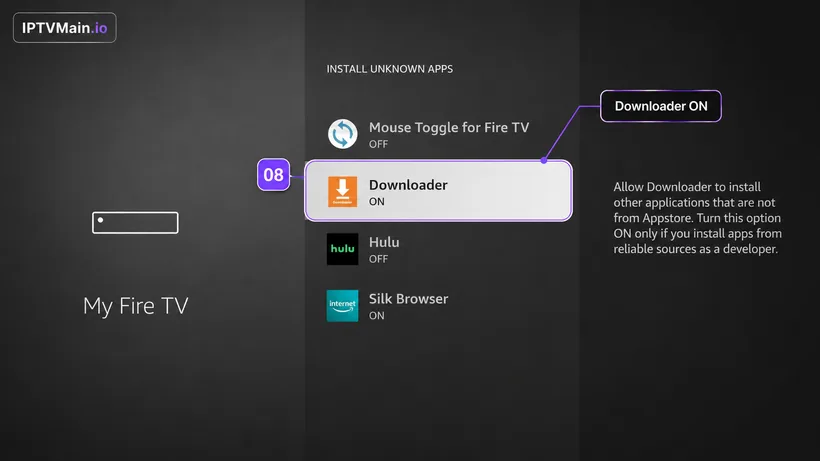
- Turn it on for Downloader. Switch the toggle ON next to Downloader specifically. Enabling it for another app does not carry across.
- Enter the download code. Open Downloader, click the URL box, type the IPTVMain Downloader code and press Go.
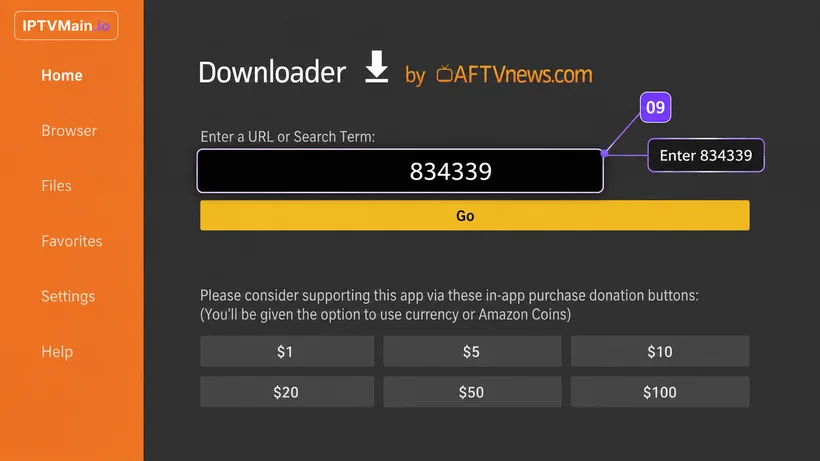
- Install and open. Downloader launches the installer automatically. Choose Install, then Open — then follow the activation steps below.
Stuck at any point? Message us on email or live chat — we answer 24/7.
Activate & add your playlist
Once the app is installed on your Firestick, these five screens get you streaming.
- Note your MAC & Device Key. A popup shows your MAC Address and Device Key. Click Continue, then send us both on live chat, WhatsApp or email (contact@iptvmain.io) so we can activate your line.
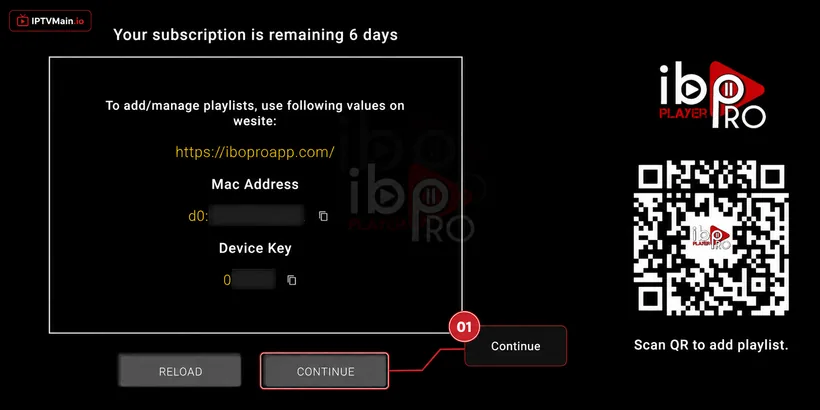
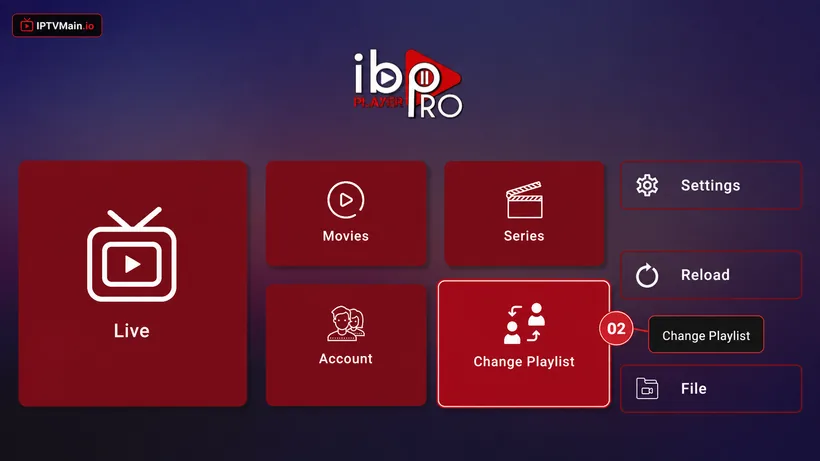
- Change Playlist. Once we confirm activation, open the app home page and choose Change Playlist.
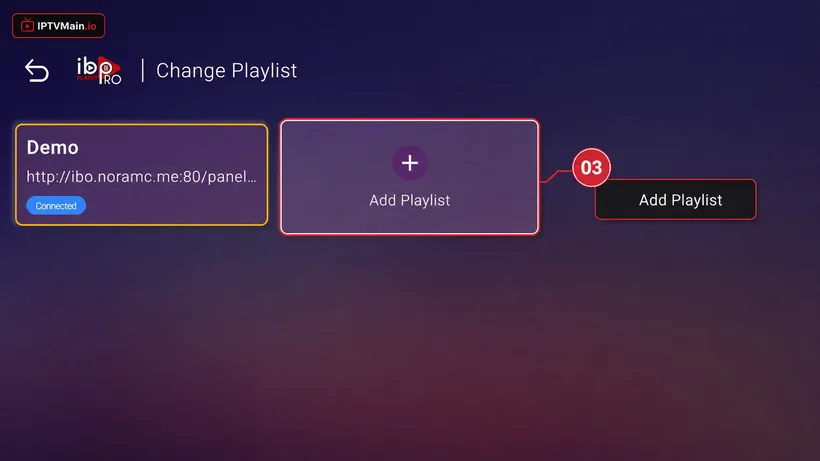
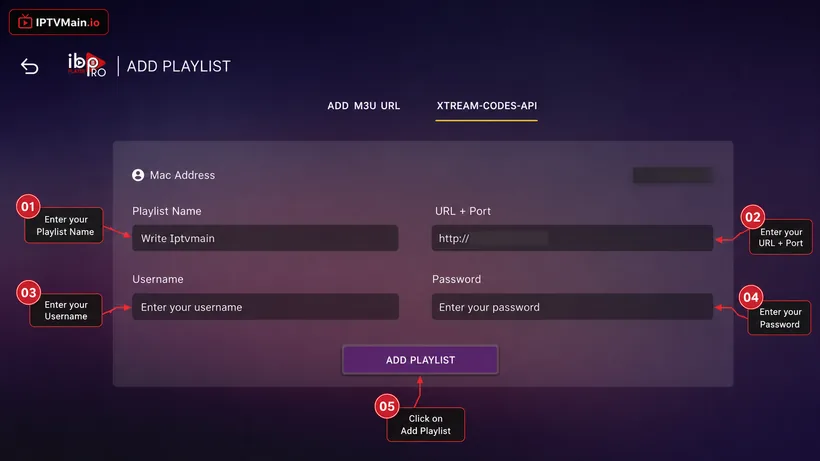
- Add Playlist. Select Add Playlist.
- Enter your login details. Choose the Xtream-Codes-API tab and fill in the server URL, username and password from your welcome email — check spam if you cannot find it.
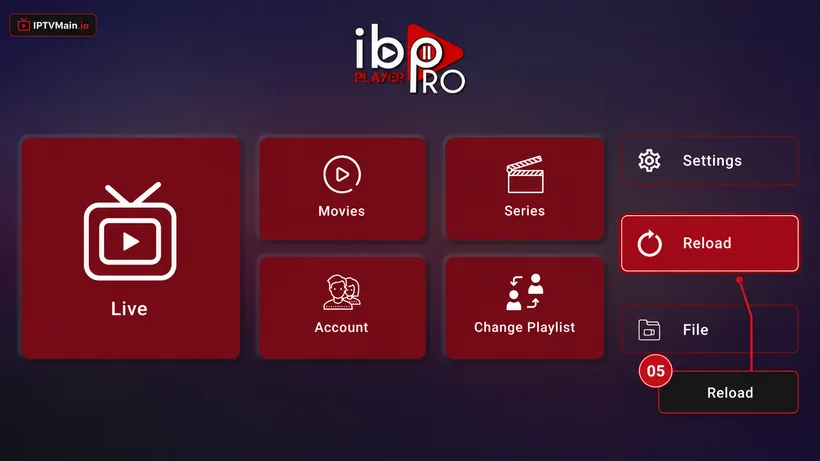
- Reload and watch. Make sure the playlist is connected on the home page, then press Reload. Your channels, VOD and guide load in.
Firestick problems & fixes
Downloader will not install the APK
The Install Unknown Apps permission is almost always the cause. Check the toggle is ON specifically for Downloader — enabling it for another app does not carry over.
I cannot find Developer Options
Amazon hides it on newer Fire OS builds. Settings, My Fire TV, About, then highlight Fire TV Stick and click it seven times.
Streams buffer on my Firestick
Restart the stick weekly, keep 1 GB of storage free, and use a Firestick Ethernet adapter if Wi-Fi is weak. Wired is the biggest single improvement for 4K.
Which Firestick should I buy?
If your TV is 4K, get the Fire TV Stick 4K or 4K Max. The standard stick is fine for a Full HD bedroom TV.
Set up another device
Samsung TV
Set up IPTV directly on a Samsung Smart TV running Tizen — no Firestick or Android box needed. Install from the Samsung store and activate in minutes.
SetupLG TV
Install IPTV on an LG Smart TV running webOS using the LG Content Store — step-by-step setup, activation and the webOS-specific issues to watch for.
SetupAndroid TV
Set up IPTV on Android TV boxes, phones and tablets — install from Google Play, activate your line, and pick the right player for your device.
SetupiPhone & iPad
Watch IPTV on iPhone and iPad — install a player from the App Store, activate your line, and use AirPlay to send it to a TV.
SetupWindows & Mac
Watch IPTV on a Windows PC or Mac — install a desktop player, enter your Xtream Codes or M3U details, and stream in full quality on a big monitor.
SetupFormuler Z
Add your IPTV line to a Formuler Z box using MYTVOnline — Xtream Codes, M3U and MAC portal setup for Z8, Z10, Z11 and Z Alpha.
Ready to start streaming?
Test the service on your Firestick free for 24 hours before you commit.